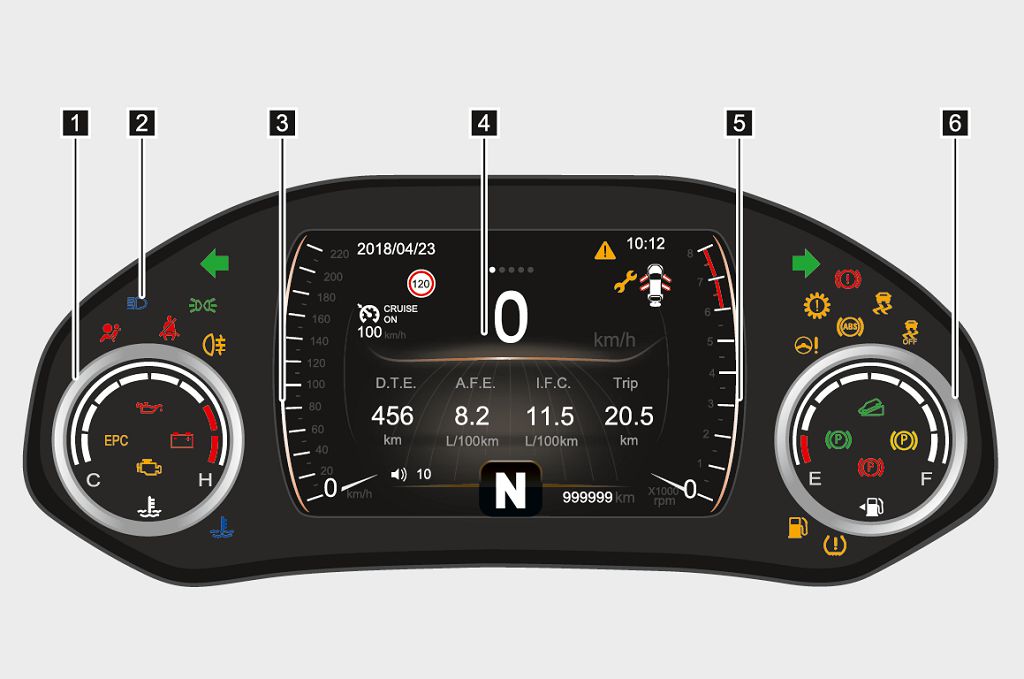
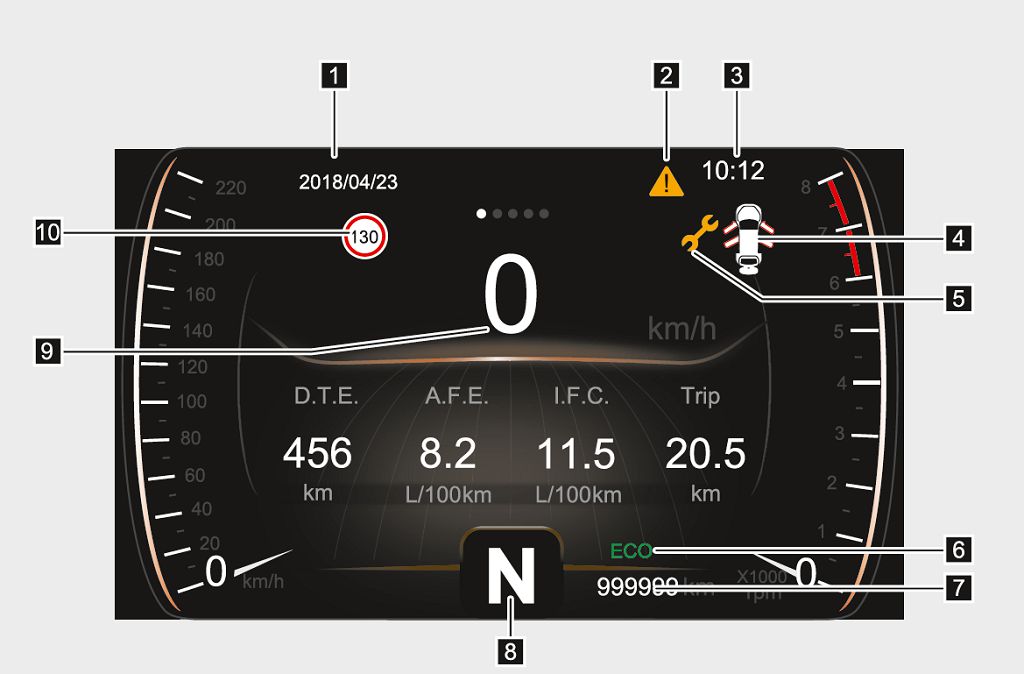
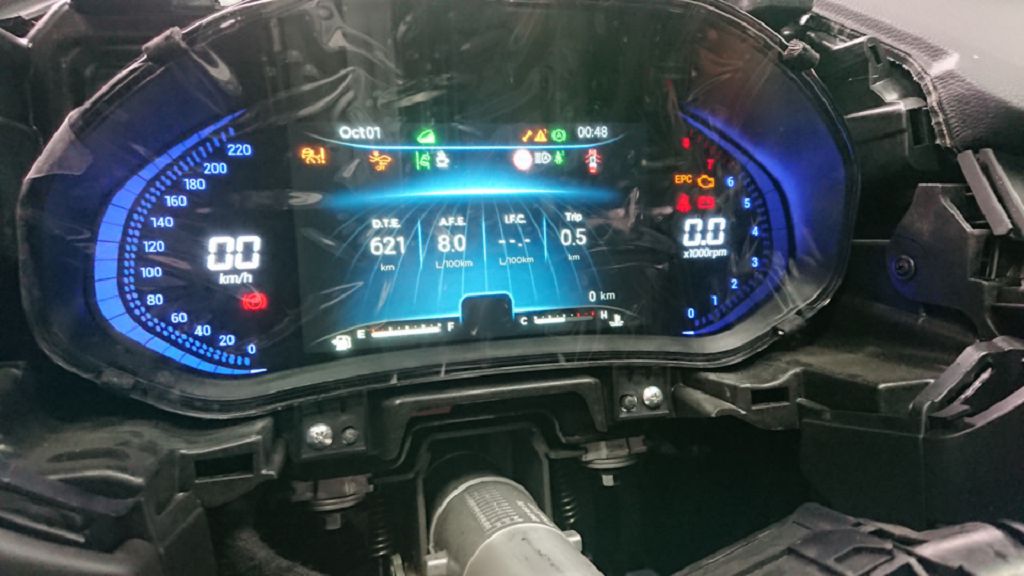
Okay, let’s dive right into the Chery Tiggo FOUR instrument panel. First off, the overall design. You’ll notice it’s a fully digital display, which is pretty slick. It’s not just a simple screen showing your speed and RPMs; it’s a really customizable interface. The graphics are sharp and clear, even in bright sunlight, which is a big plus. You’ve got your standard speedometer and tachometer, of course, prominently displayed, but there’s so much more packed into this little screen. You’ll see indicators for fuel level, engine temperature, and various warning lights, all clearly labeled and easy to understand. There’s also a trip computer that provides information on your mileage, average fuel consumption, and even driving time. It’s all presented in a really intuitive way, so you don’t have to spend ages figuring out what everything means. The screen itself is bright and responsive, and the information updates smoothly and quickly. It’s a significant upgrade from the older analog systems, offering a much more modern and informative driving experience.
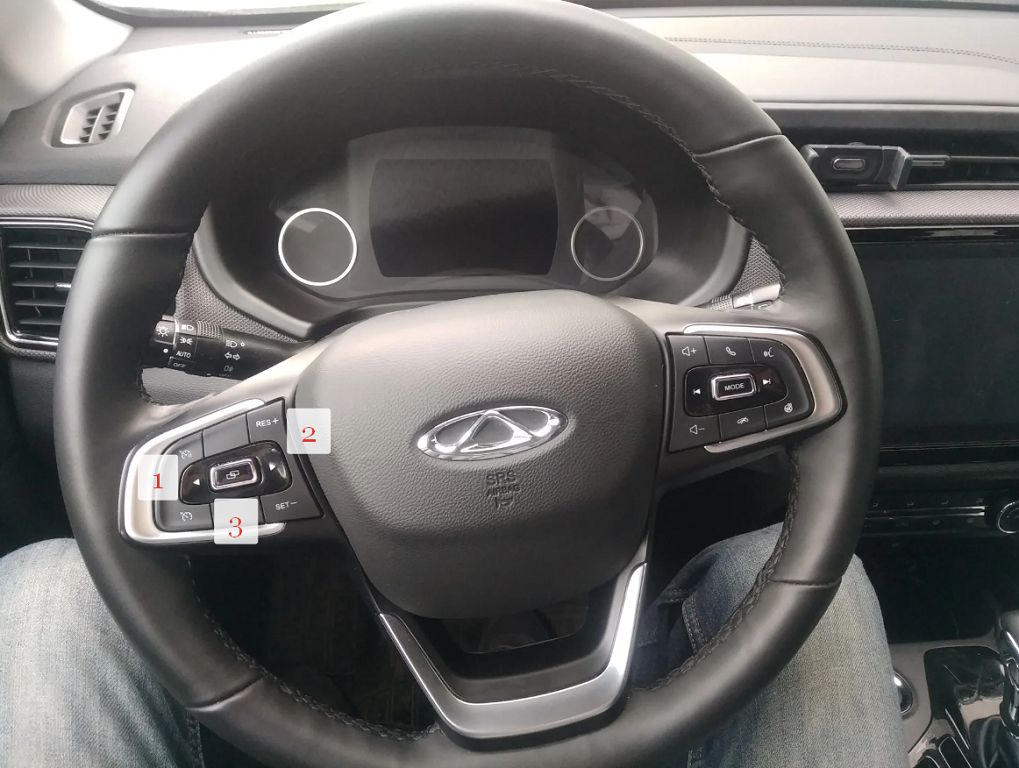
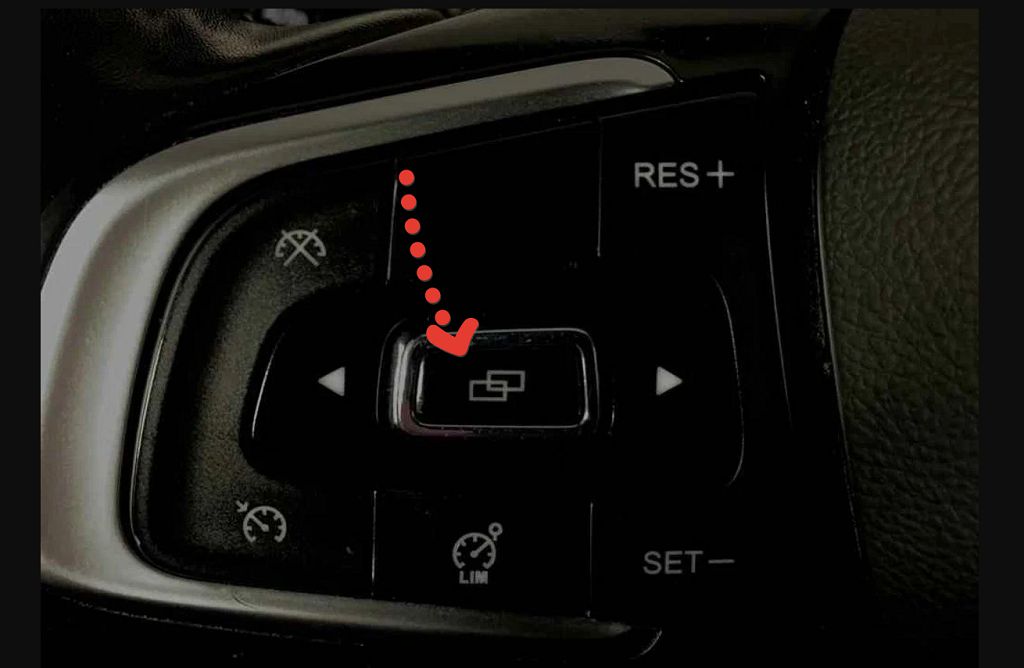
Now, let’s talk about customizing the theme. This is where things get really fun. The Chery Tiggo FOUR allows you to change the overall look and feel of the instrument panel. You can choose from several different display themes, each with its own unique color scheme and graphical style. Some are more minimalist, while others are a bit more flashy. It’s entirely up to your personal preference. The process of changing the theme is incredibly simple. Usually, there’s a button on the steering wheel or a menu option on the infotainment screen that lets you cycle through the available themes. You can easily switch between them until you find one that suits your mood or driving style. It’s a small detail, but it adds a nice touch of personalization to your driving experience. It’s not just about aesthetics either; some themes might prioritize certain information over others, making it easier to see what’s important at a glance.
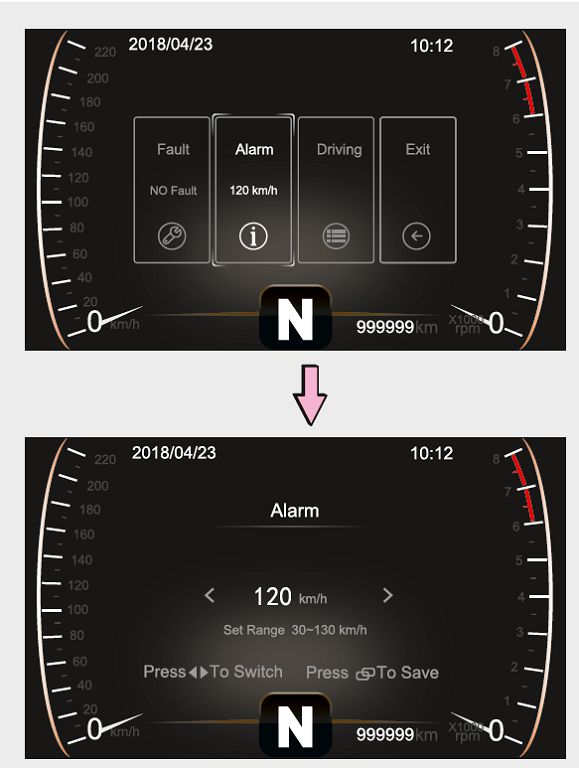
Finally, let’s discuss customizing the speed alert. This is a really useful safety feature. You can set a speed limit alert, which will give you a visual and sometimes an audible warning if you exceed the speed you’ve pre-set. This is particularly helpful for staying within speed limits, especially in unfamiliar areas or when you’re trying to be more mindful of your driving. Setting the alert is usually done through the vehicle’s menu system. You’ll find an option to adjust the speed limit, and you can set it to whatever speed you want. The system is pretty straightforward, and the instructions are usually clear and easy to follow. The alert itself is unobtrusive but effective, providing a gentle reminder to slow down without being overly distracting. It’s a great feature for promoting safer driving habits. It’s a small thing, but it can make a big difference in helping you stay safe on the road.
Okay, let’s dive into the Chery Tiggo FOUR’s instrument panel, specifically the digital display. First up, resetting the service interval. Now, this is something a lot of you have asked about, and it’s actually pretty straightforward. You’ll need to locate the button on the steering wheel – usually it’s a small button with a wrench icon, or sometimes a spanner. Press and hold that button for about FIVE seconds. The display should then cycle through various menus. You’ll see options for mileage, fuel consumption, and of course, the service interval. Keep your eye peeled for the service indicator – it might be a little wrench symbol, or perhaps a number representing the mileage until your next service. Once you find it, you’ll likely need to use another button, maybe the one on the right side of the steering wheel, to navigate to the reset option. Press and hold that button again until the service interval resets to ZERO. It’s always a good idea to check your owner’s manual for the exact procedure, as it can vary slightly depending on the year and model of your Tiggo FOUR. Don’t worry if it seems a little confusing at first – it’s easier than it sounds once you get the hang of it.
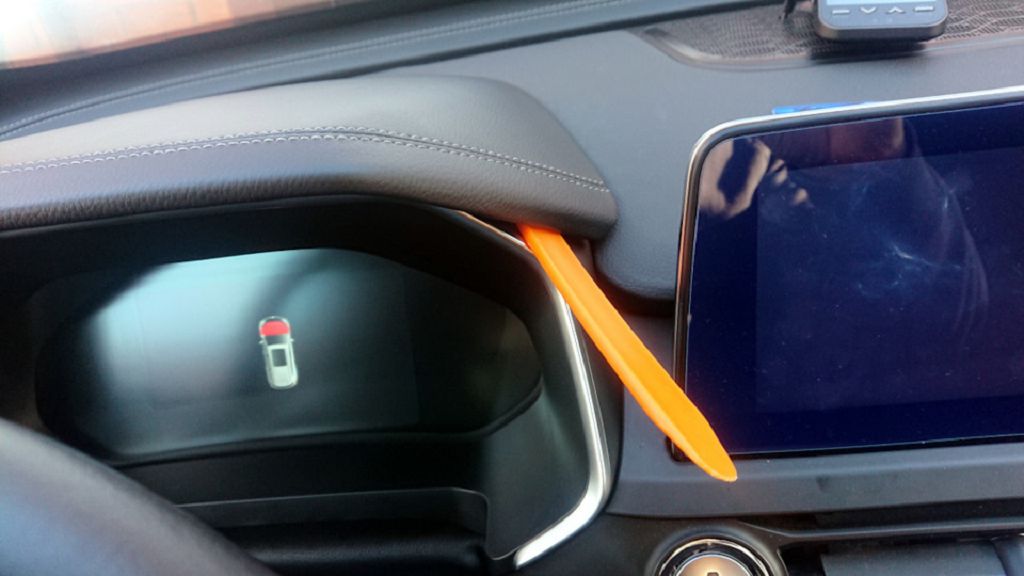
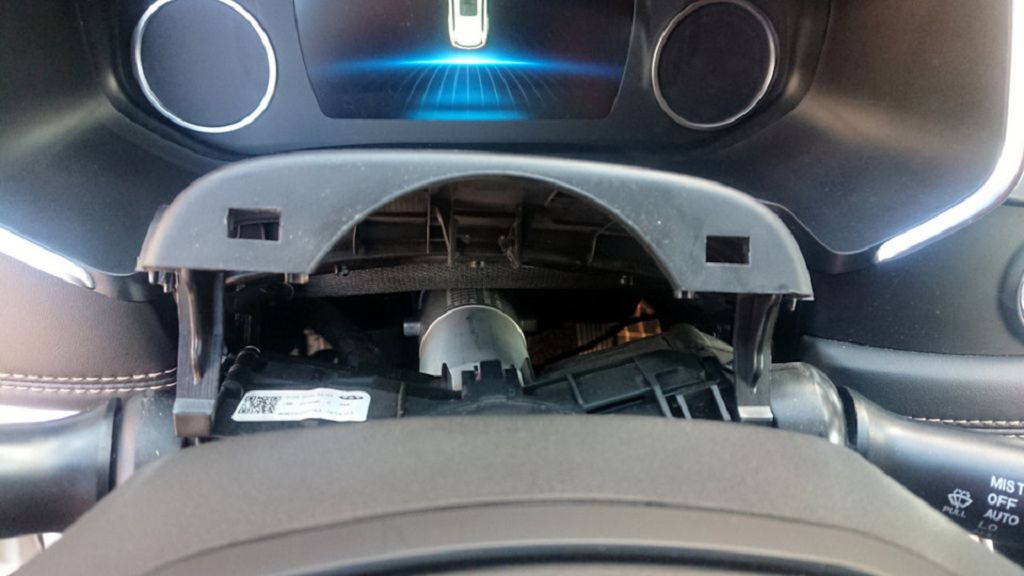
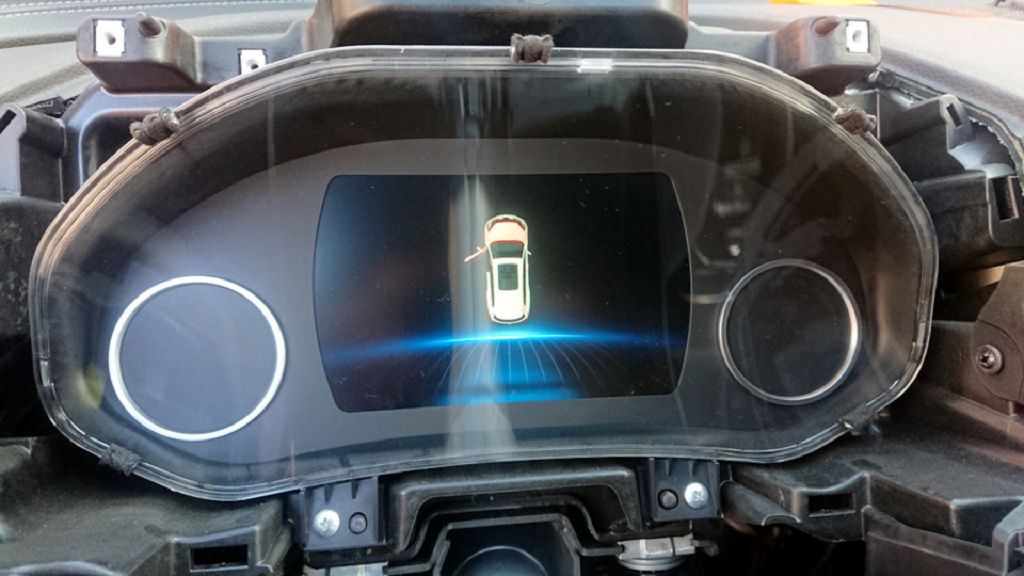
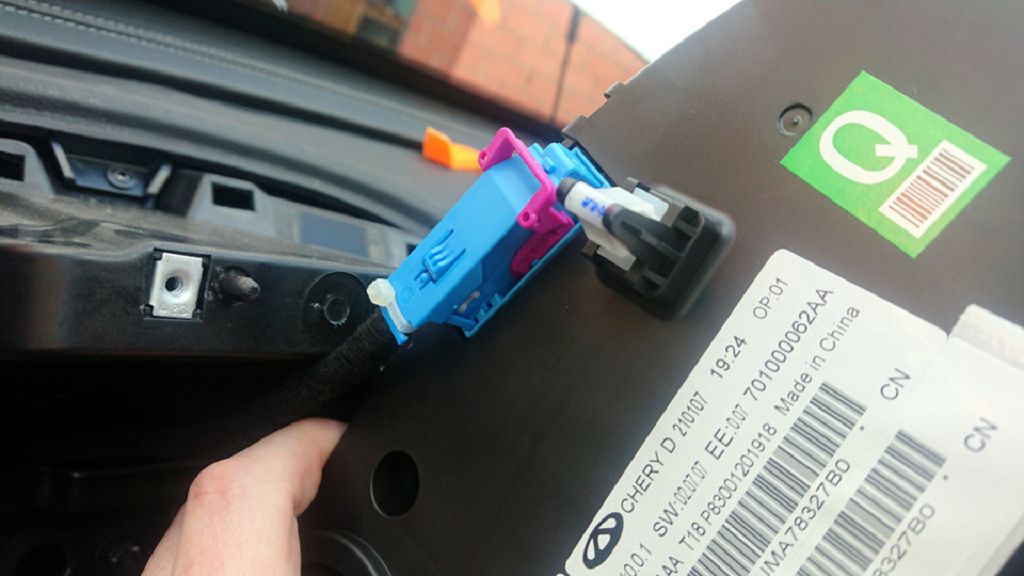
Next, a question I get a lot: how do I remove the dashboard? Now, I’m not going to tell you to do this at home unless you’re a qualified mechanic. Removing the dashboard is a complex process involving a lot of delicate parts and potentially some electrical components. It’s not a job for the faint of heart, and if you’re not comfortable working with car electronics, it’s best to leave it to a professional. There are a LOT of clips and screws holding everything in place, and if you’re not careful, you could end up causing more damage than good. Plus, there’s the risk of damaging the wiring harnesses, which could lead to all sorts of electrical problems. If you’re having issues with your dashboard, it’s far safer and more cost-effective to take it to a qualified mechanic. They have the right tools and expertise to diagnose and fix the problem without causing further damage.
Finally, let’s talk about upgrading to a fully digital dashboard. This is a popular question, and unfortunately, the answer is usually no. The Chery Tiggo FOUR’s instrument cluster is specifically designed for its current setup. While you might find aftermarket digital dashboards available, they’re unlikely to be a direct fit. The wiring harnesses, mounting points, and even the software are all unique to the Tiggo FOUR. Trying to force a different dashboard into place could lead to compatibility issues, electrical problems, and potentially even damage to your car’s electrical system. It’s simply not worth the risk. If you’re looking for a more modern look or additional features, it’s best to explore other options, such as upgrading the infotainment system or adding aftermarket accessories that are compatible with your existing dashboard. Remember, safety and compatibility are key when making modifications to your vehicle.