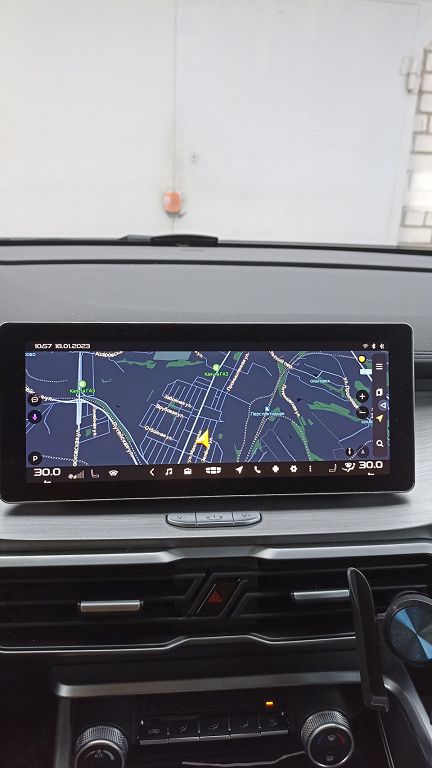
Hey everyone, let’s dive straight into this Geely Coolray OEM stereo. This thing is packed with features, and I’m going to walk you through them all. First off, let’s talk about what makes this stereo special. It’s not just your average car radio; it’s integrated directly into the car’s system, meaning it’s designed specifically for the Coolray. That means seamless integration with other features, like the car’s display screen, and often better sound quality than an aftermarket unit. We’re talking about crisp highs, rich mids, and deep, punchy bass. It also usually comes with some pretty advanced features, depending on the trim level of your Coolray. Things like built-in navigation, Bluetooth connectivity for hands-free calling and audio streaming, and sometimes even Apple CarPlay or Android Auto. We’ll be exploring all of those capabilities today.
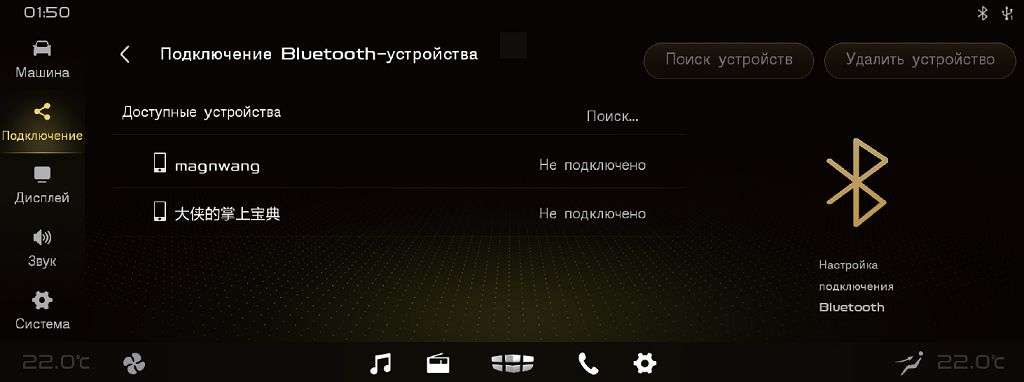
Now, let’s get this stereo connected to your phone. The process is pretty straightforward, but there are a few things to keep in mind. First, make sure your phone’s Bluetooth is turned on. Then, go into your stereo’s settings – usually there’s a button on the unit itself, or you might need to navigate through the car’s infotainment system. Look for the Bluetooth option; it’s usually pretty clearly labeled. Once you’re in the Bluetooth settings, the stereo should start searching for available devices. Your phone should appear in the list. Select it, and you’ll likely be prompted to enter a PIN code on your phone to confirm the pairing. Once that’s done, you should be good to go. You can now stream music wirelessly, make calls hands-free, and even access certain phone features directly through the stereo. Remember, the exact steps might vary slightly depending on the software version of your stereo, so don’t be afraid to consult your owner’s manual if you get stuck.
Finally, let’s talk about setting up the multimedia features. This is where things get really interesting. Depending on your Coolray’s trim level and the software version of your stereo, you might have access to a whole host of multimedia options. This could include things like accessing your phone’s music library through Apple CarPlay or Android Auto, using the built-in navigation system, or even listening to internet radio stations. Explore the different menus on your stereo and the car’s infotainment screen. You’ll find options for adjusting audio settings like bass, treble, and balance, customizing your home screen, and managing your connected devices. Take your time to familiarize yourself with all the features. Don’t be afraid to experiment – that’s the best way to learn how to get the most out of your Geely Coolray’s OEM stereo. And remember, if you run into any trouble, there are tons of online resources and forums dedicated to Geely Coolrays where you can find help and advice from other owners.
Okay, let’s dive straight into connecting your phone to your Geely Coolray’s OEM stereo using QDLink. Now, QDLink is a pretty neat technology, offering a super-fast and stable connection for transferring data and mirroring your phone’s screen. First, make sure both your phone and your Coolray’s infotainment system support QDLink. You’ll usually find this information in your phone’s settings and in your Coolray’s owner’s manual. Once you’ve confirmed compatibility, the process is usually pretty straightforward. On your phone, you’ll typically need to enable the QDLink feature – it might be under «Connections» or «Wireless Display.» Then, on your Coolray’s screen, you should see a QDLink option, often in the settings menu of the infotainment system. Select it, and your phone should appear on the list of available devices. Tap on your phone, and the connection should be established almost instantly. You’ll then be able to seamlessly mirror your phone’s screen, access your apps, and even control some phone functions directly from your Coolray’s touchscreen. Remember to check your phone’s and car’s manuals for any specific instructions, as the exact steps might vary slightly depending on your phone model and the Coolray’s software version. If you run into any trouble, don’t hesitate to consult those manuals or search online for troubleshooting tips specific to your devices.
Now, let’s talk about flashing the firmware on your Geely Coolray’s stereo. This is a bit more advanced, so pay close attention. Before you even think about doing this, understand that flashing the wrong firmware can seriously damage your stereo, potentially rendering it unusable. So, proceed with extreme caution! First, you’ll need to find the correct firmware file for your specific stereo model. This is crucial. Getting the wrong one will likely brick your system. You can usually find these files on dedicated automotive forums or websites specializing in Geely Coolray modifications. Once you’ve located the correct file, you’ll need a suitable tool to flash the firmware. This often involves using a USB drive formatted in a specific file system, like FAT32. The exact process will vary depending on the tool and the firmware file, so carefully follow the instructions provided with the firmware. Remember to back up your current stereo settings before you start, just in case something goes wrong. During the flashing process, NEVER interrupt the power supply to the stereo. Doing so could permanently damage it. After the flashing is complete, your stereo should reboot, and you should see the updated version number. If you encounter any problems, consult the instructions or seek help from experienced users in online forums. Again, this is a complex process, and it’s essential to be careful and follow instructions precisely.
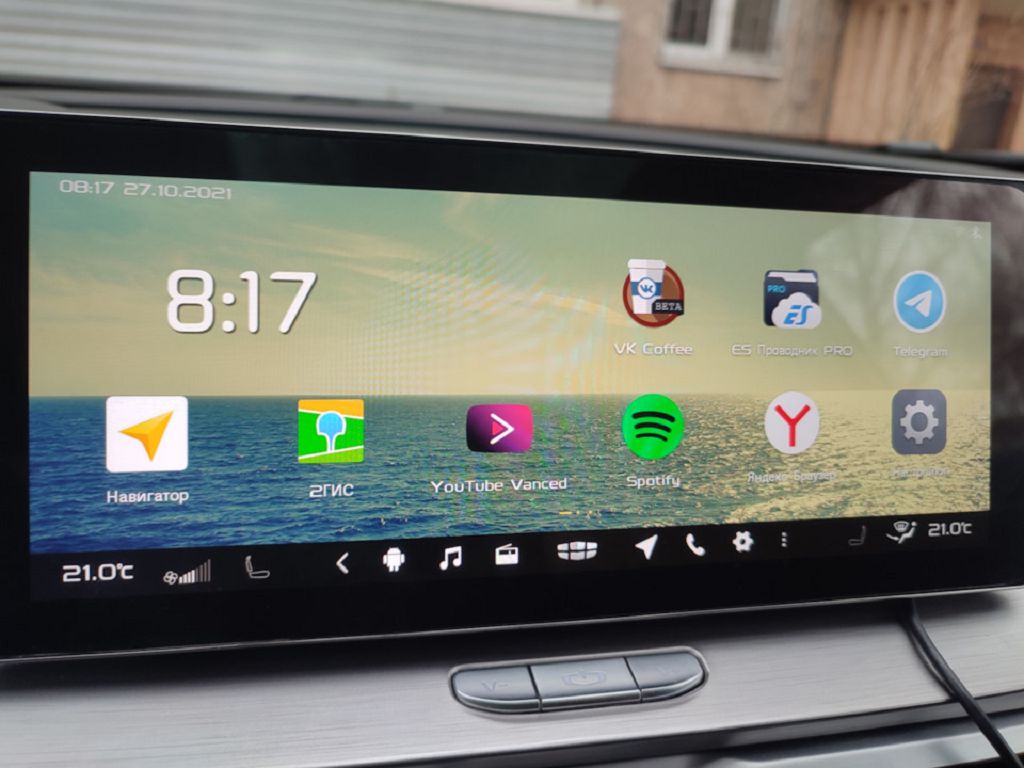
Finally, let’s explore some useful applications you can use with your Geely Coolray’s stereo. Many OEM stereos now support a wide range of apps, expanding their functionality beyond basic audio playback. Depending on your stereo’s capabilities and the apps available, you might find navigation apps, parking assistance apps, or even entertainment streaming apps. Some stereos even integrate with your phone’s calendar and contacts, allowing you to manage calls and appointments directly from the touchscreen. Explore the app store available on your stereo to see what’s available. Remember to check for updates regularly, as new apps and features are often added. Also, be mindful of data usage if you’re using streaming apps, as this can quickly consume your mobile data allowance. Experiment with different apps to find the ones that best suit your needs and driving habits. Remember to always prioritize safe driving and avoid distractions while using any apps on your stereo.